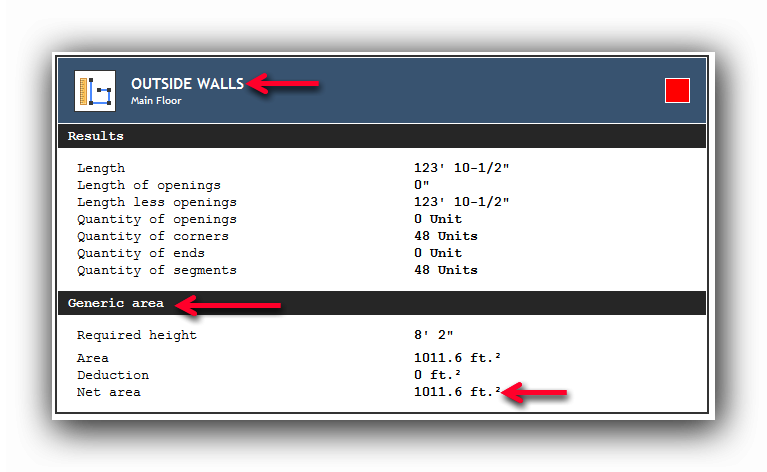
It's easy to generate an area result from a linear measurement by multiplying this linear measure by a height using Active Takeoff's extensions.
Amongst all the available extensions, generic extensions can be selected to obtain raw square results (square feet, square meters). To get more specefic results depending on your trade (painting, drywall, masonry, etc.) select one of the many other extensions from the category menu.
Here's how to do it :
Create a new Group with the Perimeter tool :
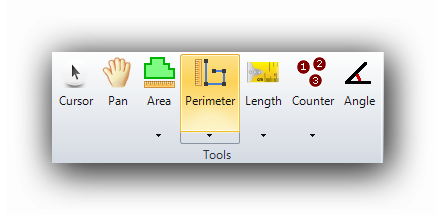
You can now configure the Perimeter tool :
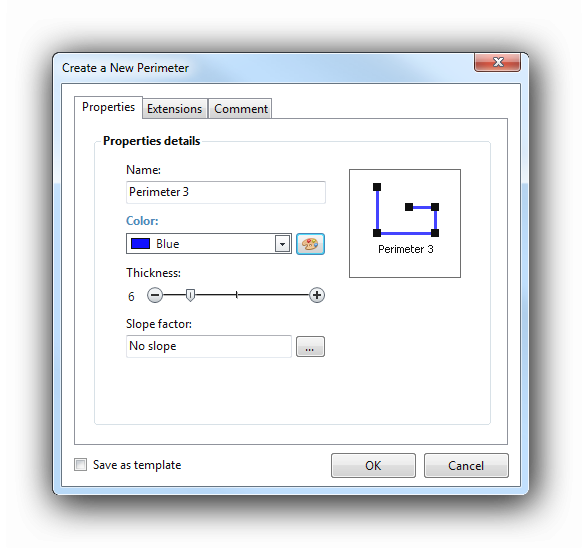
Configure the Perimeter tool as usual ans click on the "Extensions" tab :
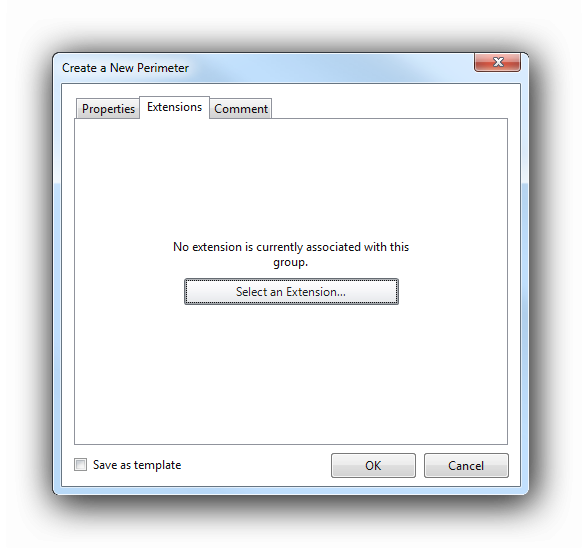
Click on the "Select an Extension" button
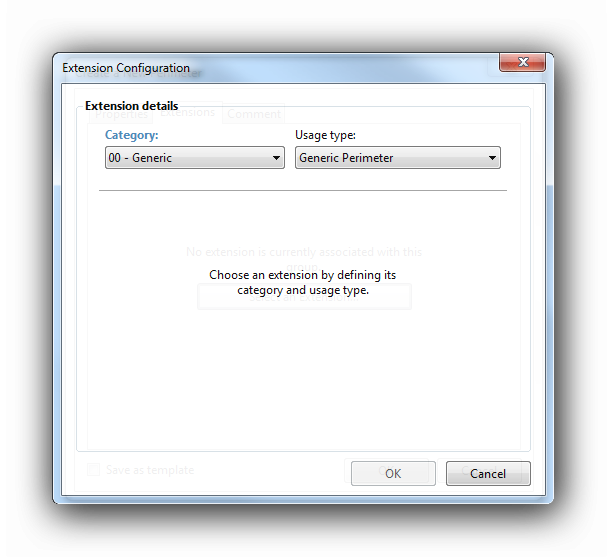
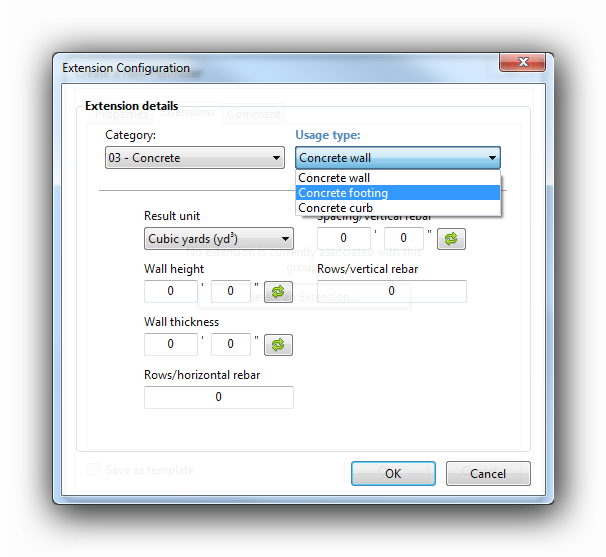
Our extensions are sorted by "Category" an by "Usage type". Each usage type is a sub-element of a Category.
Example : The "Concrete" category contains three (3) usage types: Concrete wall, Concrete footing and Concrete curb
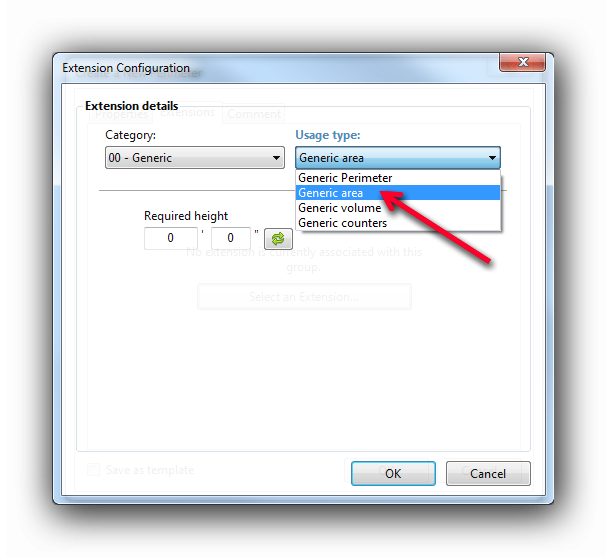
To generate an area from a linear measurement, we will select the "Generic" category and the "Generic area" usage type :
Once the usage type selected, we enter a height to be multiplied to the linear measurement to generate an area:
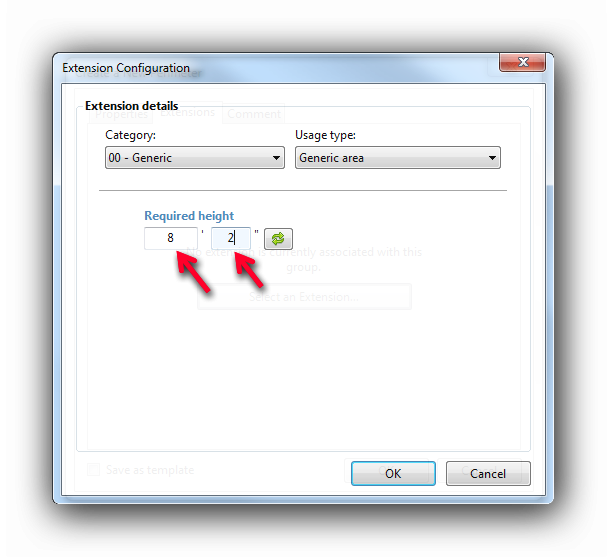
Once the height is entered, click on the OK button and then measure the plan as usual.
Let's go straight to the Properties panel, after the measurement is taken:
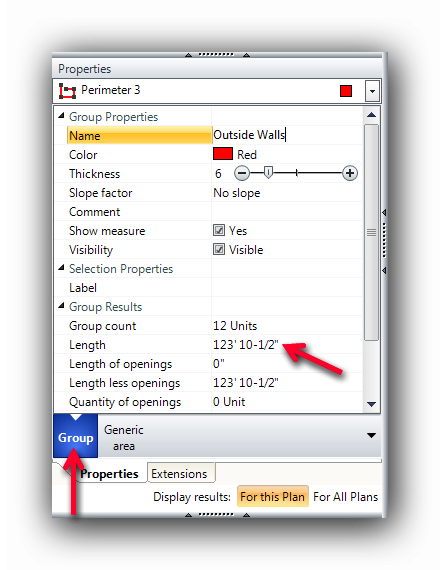
Here we can see the "Group" result block which returns 123' 10-1/2".
The extensions associated with this Perimeter tool (You can add more than one!) will be displayed at the right of the "Group" block. There we find the "Generic area" block.
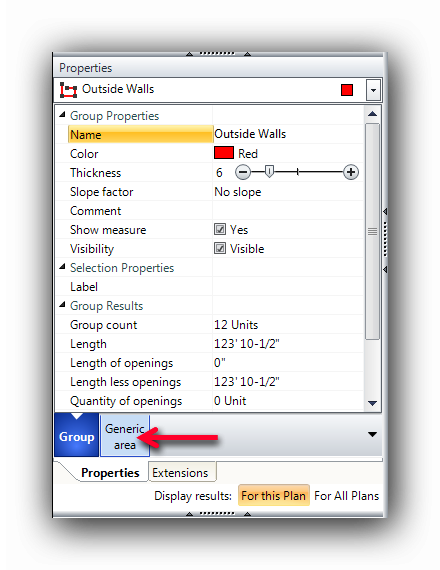
When we click on this block, the extension results will be displayed:
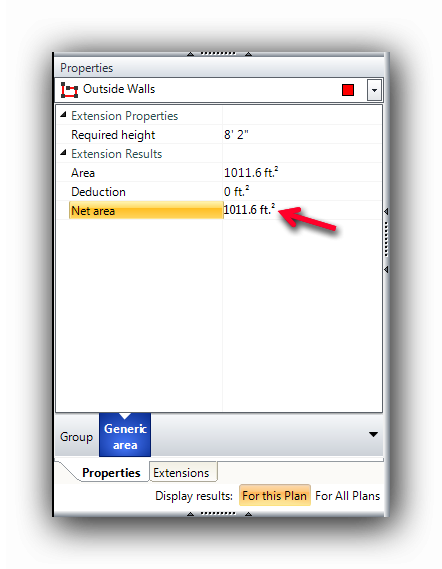
We get (123' 10-1/2" length x 8'2" height = 1011.6 square feet).
You can also subtract your opening areas (doors, windows etc.) in the perimeter when associated with an area extension. The subtracted areas will be shown in the "Deduction" line. This matter is described in another "Tips and Tricks".
These results will also be displayed in the report under the corresponding object: