

Installing Active Takeoff
Once you have downloaded the Active Takeoff Setup, locate the setup file and double-click it.
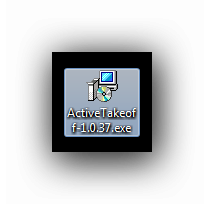
The setup wizard will then open.
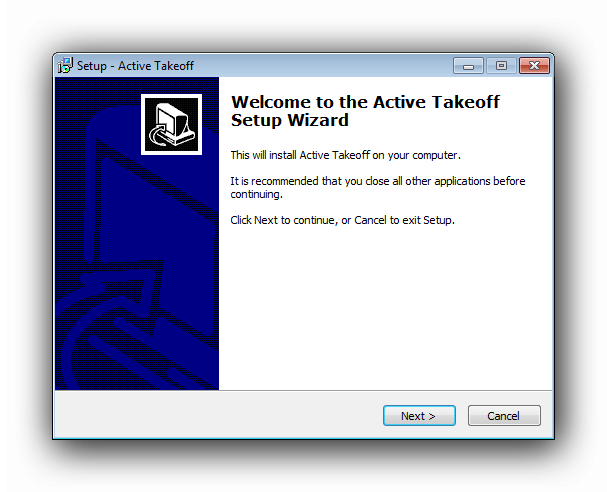
Click Next to continue, or Cancel to exit the setup. You can cancel at anytime during the setup process.
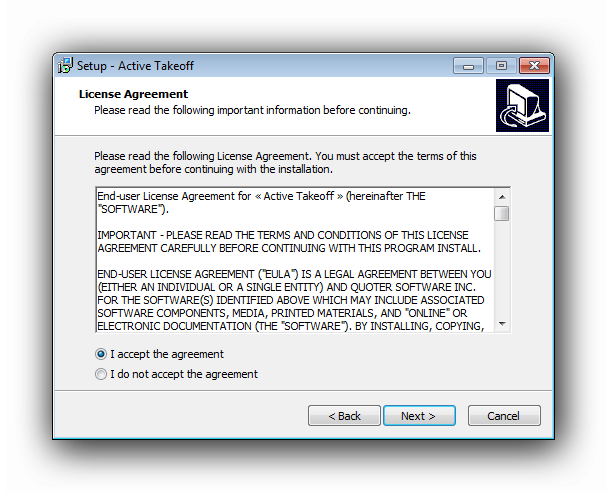
Carefully read the Licence Agreement then click on the "I accept the agreement" button if you agree or the "I do not accept the agreement" if you do not. The "Next" button will be enabled only if you agree.
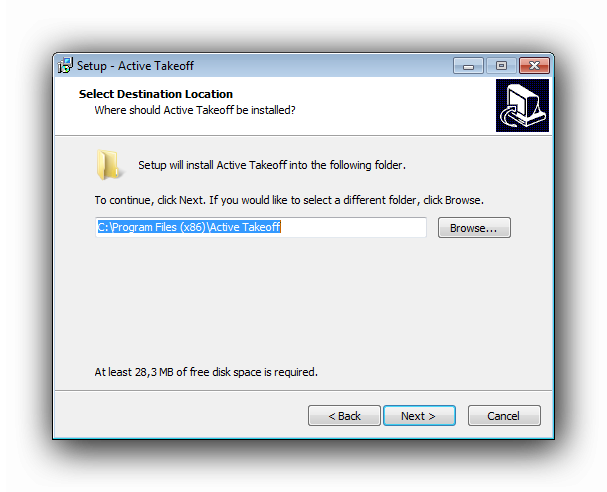
Select the folder in which Active Takeoff will be installed. We recommend you keep the default folder already set in the text field. If you would like to select a different folder, click the "Browse" button and select a different folder.
Setup the shortcut name and Start Menu settings then click the "Next" button.
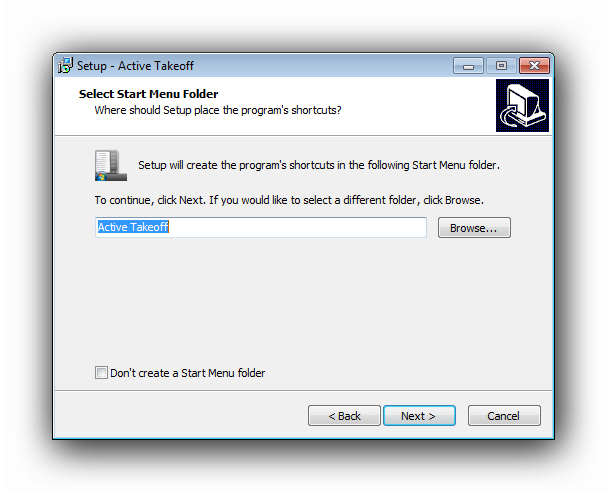
Setup the "Additional Setup Tasks" then click the "Next" button.
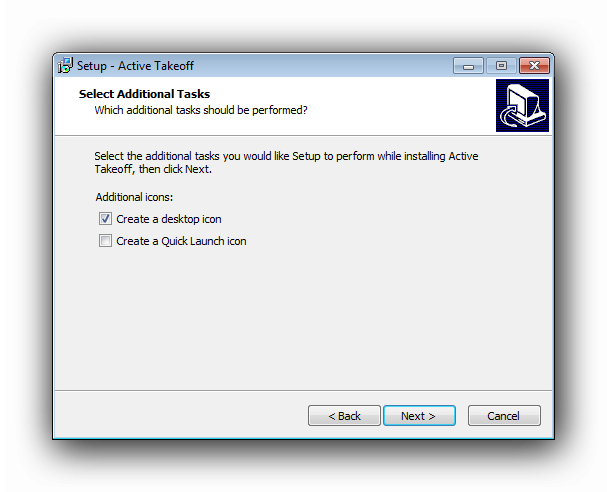
The Setup Wizard will now display the install settings. If you wish to change some settings, use the "Back" button. Otherwise, click the "Install" button.
The setup Wizard will install Active Takeoff on your computer.
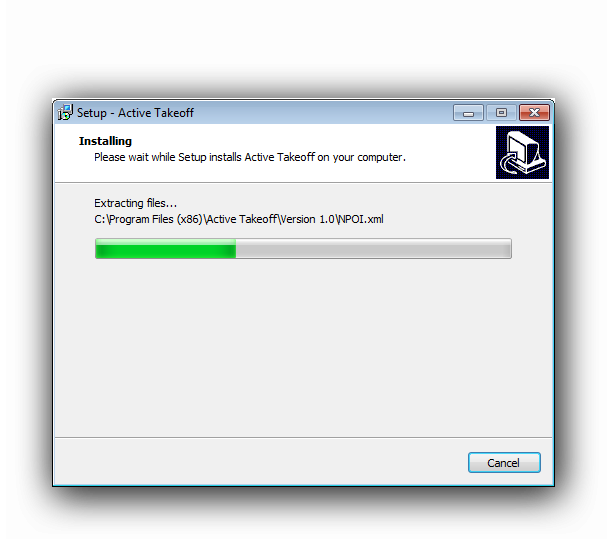
At the end of the install process, this window will appear :
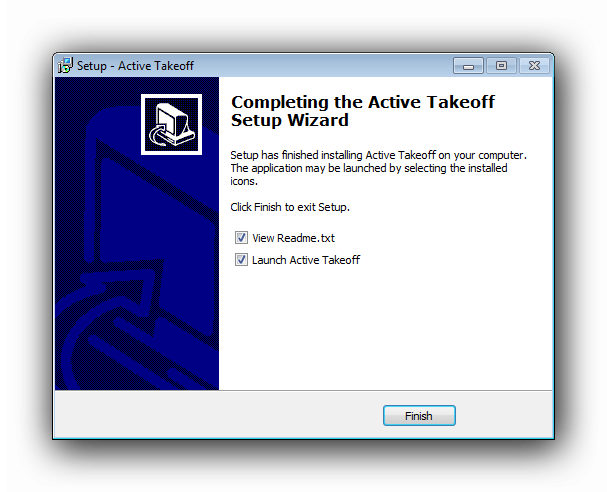
At this point, check or uncheck the "View Readme.txt" and "Launch Active Takeoff" options and click the "Finish" button.
Active Takeoff is now ready to run.
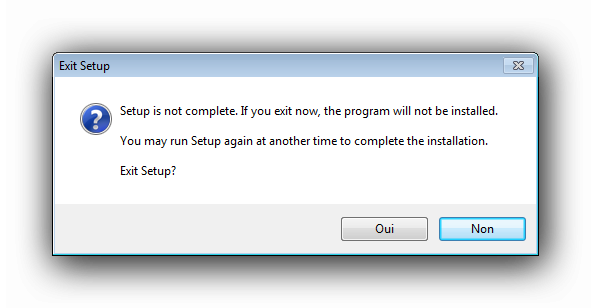
If you cancel the setup at any point, this window will appear :
Uninstalling Active Takeoff
Active Takeoff can be uninstalled from the Start Menu or from the Control Panel
1) Click the Start Menu
2) Click on "Programs" or "All Programs"
3) Select the Active Takeoff folder
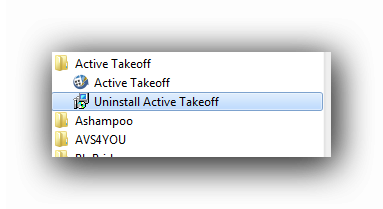
4) Click on the "Uninstall Active Takeoff" menu item
This window will appear :
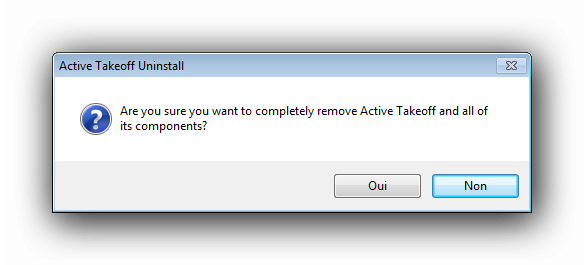
Click "Yes" to uninstall.
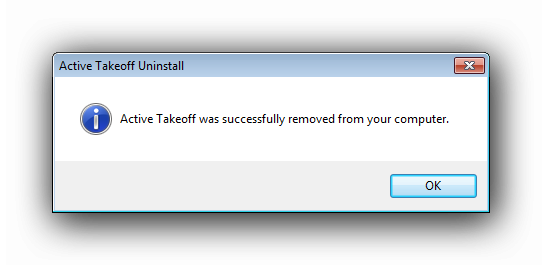
Active Takeoff will be removed from your computer
To uninstall Active Takeoff from the Control Panel, please consult Microsoft's documentation here.