A product key (activation) can be transferred from one computer to an other. This will activate Active Takeoff on the second computer and deactivate it on the first one. This action is reversible and can be performed as many times as required.
Step 1 : Get your product key on computer # 1
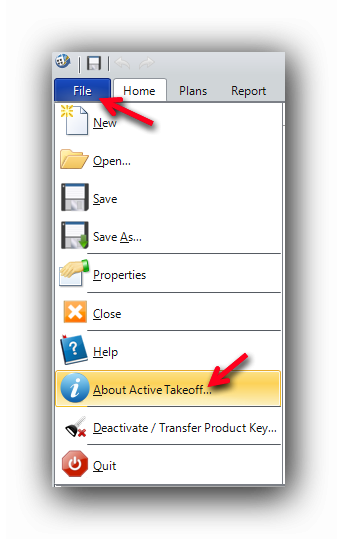
In the "File" menu, click on the "About Active Takeoff" button.
This will display your software version and your product key.
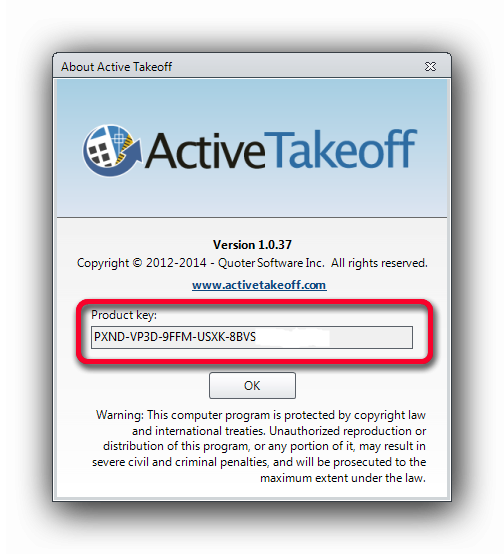
Copy your product key. You will need it on computer # 2.
Step 2 : Deactivate Computer # 1
Go back to the "File" menu and click the "Deactivate / Transfer Product Key..." menu item.
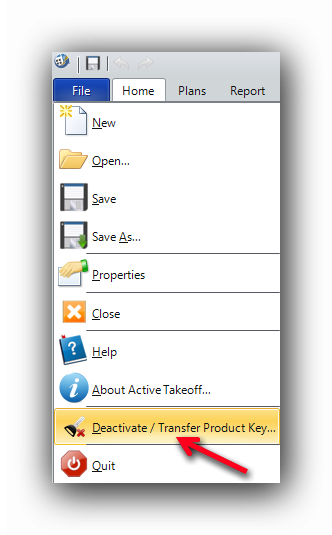
Confirm the deactivation
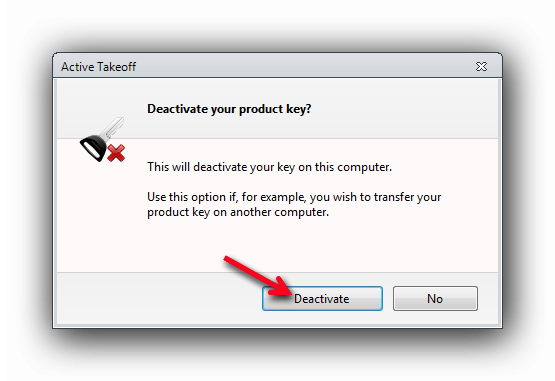
Computer # 1 is now deactivated.
Step 3 :
Activate computer # 2
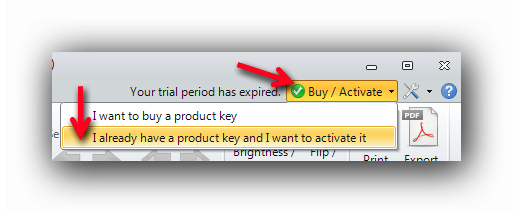
On computer # 2, click the "Buy / Activate" tab located at the top right of the Active Takeoff interface then select the "I already have a product key and I want to activate it" menu item.
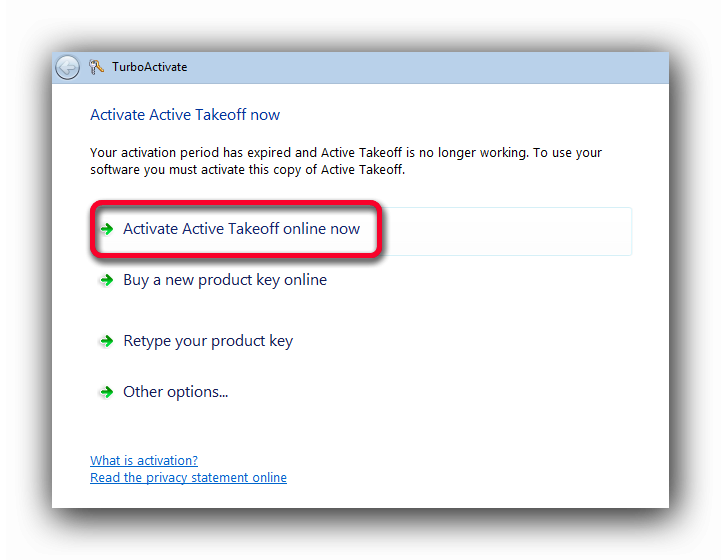
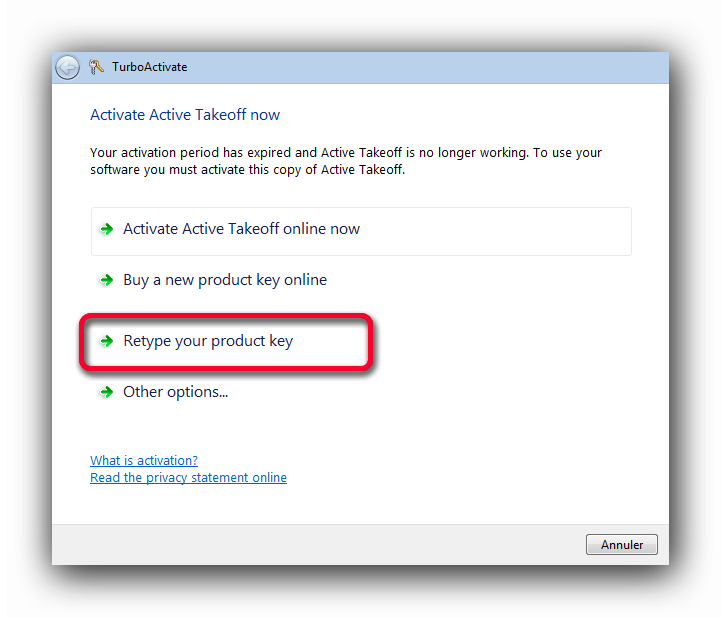
The "Activate Active Takeoff now" popup window will appear. Click on "Retype your product key"
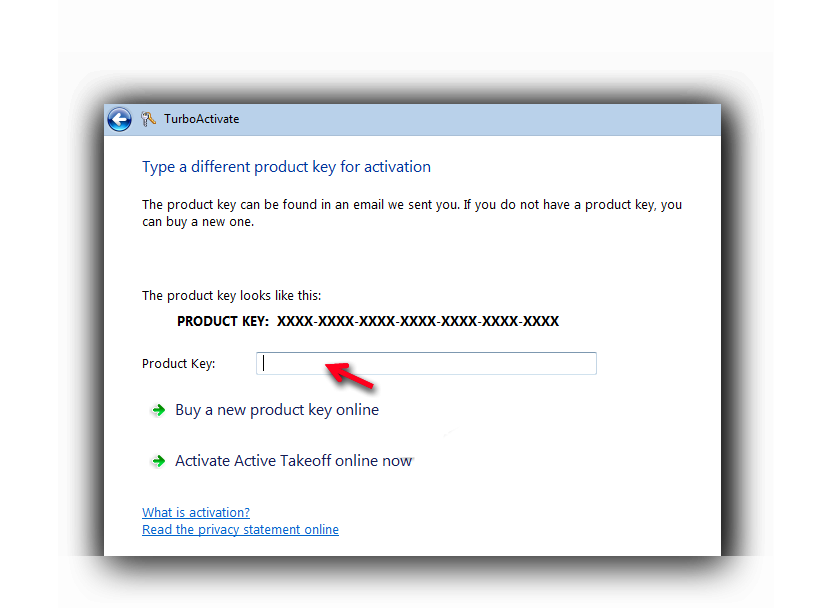
Type (or paste) your producy key in the "Product Key" field then click on the "Next" button.
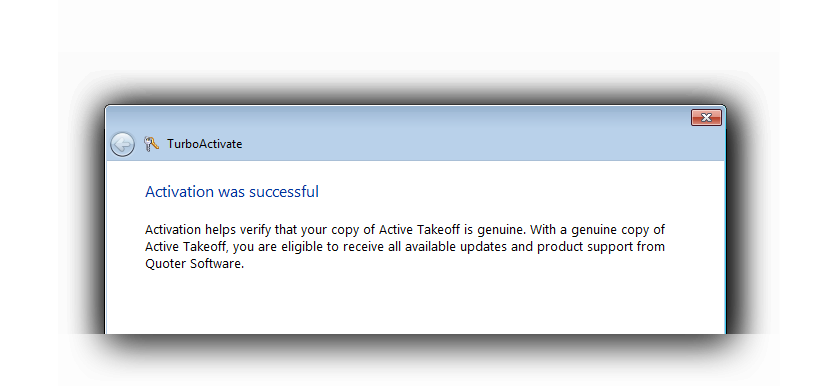
You are now ready to use Active Takeoff on computer # 2
Note :
If you have already performed an activation / deactivation once, Active Takeoff will remember the product key. This way, you will not be required to retype the product key everytime.
In this case, select the "Activate Active Takeoff online now" option and you will be reactivated in no time.